
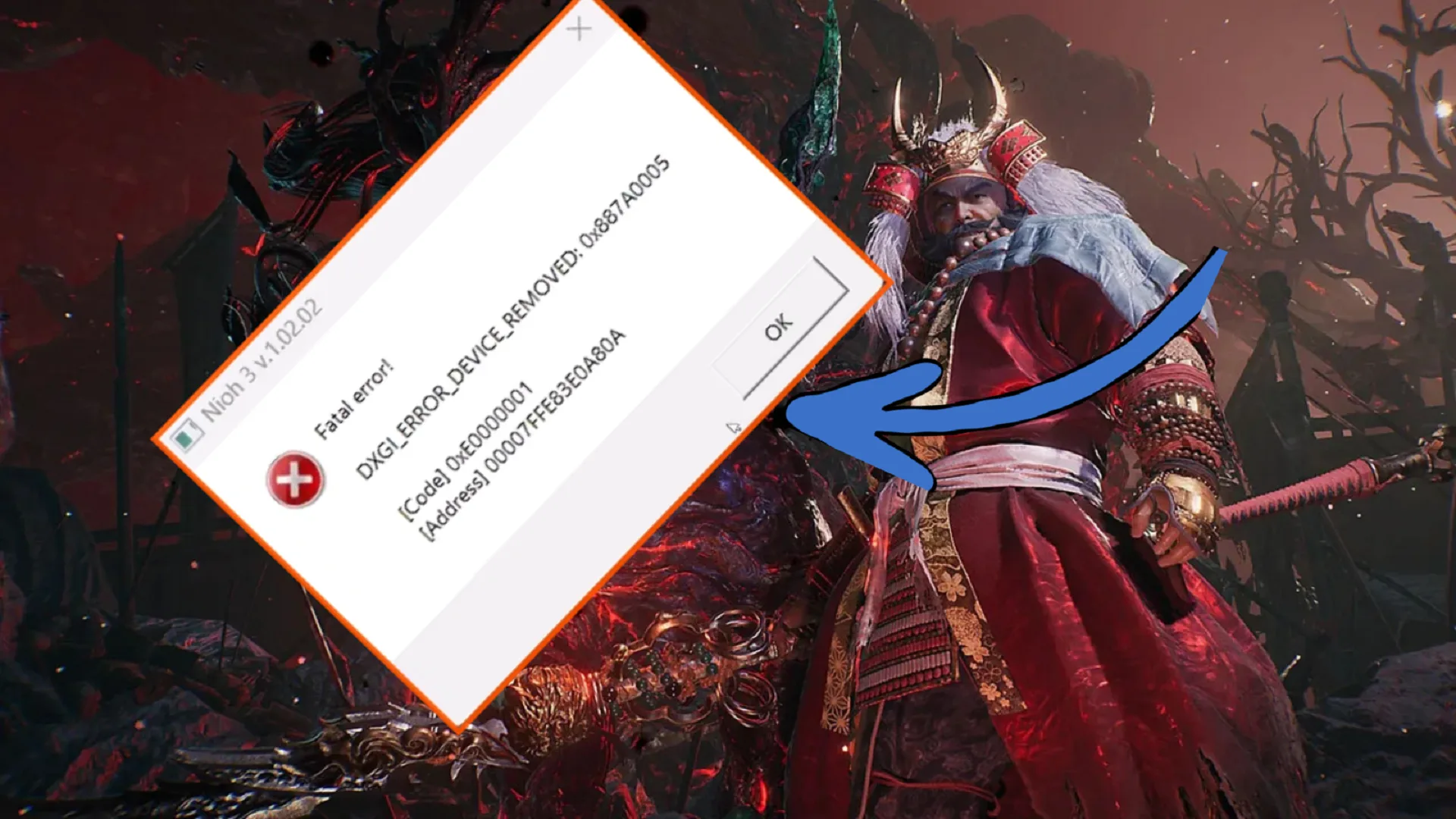
The latest addition to the Nioh franchise is the third one running on Katana Engine. So far Nioh 3 is pretty decent across the board, but some PC users are facing some errors and crashes. The specific issue that is cited by many users is, DXGI_ERROR_DEVICE_REMOVED: 0x887A0006 which causes the game to crash. While working with fixes this type of error is most commonly related to GPU.
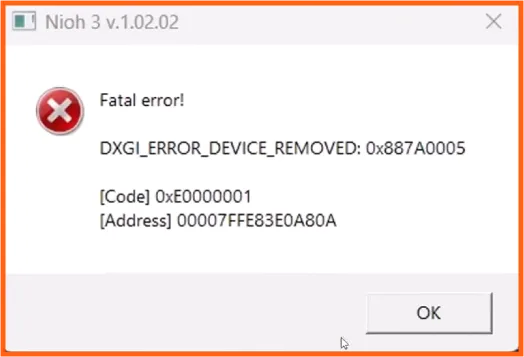
The most common reason of this type of error is
- GPU driver issue: Update the driver or clean installation
- GPU not getting enough power or overclocking: Disable GPU overclocking
- Graphic settings high or unstable: Adjust in-game graphics to an optimized level
- Timeout of driver (TDR issue): Edit regedit file
- Overlays of other apps: Disable any other app overlays
I will try to give you all the possible confirmed fixes that will help you resolve the fatal error dxgi device removed crash on PC.
How to Fix NIOH 3 Fatal Error DXGI Device Removed Crash
This error message appears when your windows temporarily can’t communicate with GPU. So, here are some of the common fixes that worked for most of the players.
Fix #1: (Disable Frame Generation + Dynamic Resolution)
The most common issue of Fatal Error DXGI Device Removed is because of the unstable frame generation in Nioh 3 and often causing the GPU driver to crash. Here are the steps that you can do to disable Frame Gen+Dynamic Resolution.
- Nioh 3 > Visuals > Resolution Advanced Settings > Disable Frame Generation
After that limit the frame rate to the lowest value.
Fix #2: (Disable Hardware-accelerated GPU Scheduling)
Hardware Accelerated GPU Scheduling used to work fine on Windows 10 but Windows 11 is a different story. If you’re on Windows 11 and getting the DXGI device removed fatal error than it is likely to due to Hardware Accelerated GPU Scheduling.
Luckily, it is very easy to turn of Hardware Accelerated GPU Scheduling to prevent crashing on PC.
- Open Windows Settings
- Go to System
- Go to Display > Graphics
- Default Settings > Change Default Graphics Settings
- Turn off Hardware Accelerated GPU Scheduling
Before launching Nioh 3 make sure to restart your PC or else you may still experience DXGI Device Removed error.
Fix #3: (Limit FPS Accordingly)
In one of my other articles on Nioh 3’s camera stutters I discussed how camera stutters happen because of uneven frame rates. This is an issue with the game’s engine. But in addition to camera stutters and jitters, high frame rates can cause a fatal crash into DXGI Device Removed error message on PC.
So what’s the fix? Limit your frame rate and test if things get better, especially if you’re hardware can’t handle high FPS but you have set the frame limit higher Start by settings the frame limit to the lowest value and gradually go up if you see improvement in crashes so get an idea of how far you can push the frame rates without crashing into DXGI Device Removed error.
Fix #4: (Disable GPU Overclocking)
Nioh 3’s game engine doesn’t like overclocked GPUs. We will end up experiencing camera stutters in-game and worse case scenario, crashes and DXGI Device Removed Fatal Error.
The solution is to unlock overclocking and reset GPU to its default clocks. If overclocking is done through BIOS, revert it. Lastly, make sure GPU temps are normal and not throttling. Overclock instability is a frequent cause of DXGI crashes, especially in games like Nioh 3 that are built on the Katana Engine.
Fix #5: Adjust Windows Timeout Detection and Recovery (TDR)
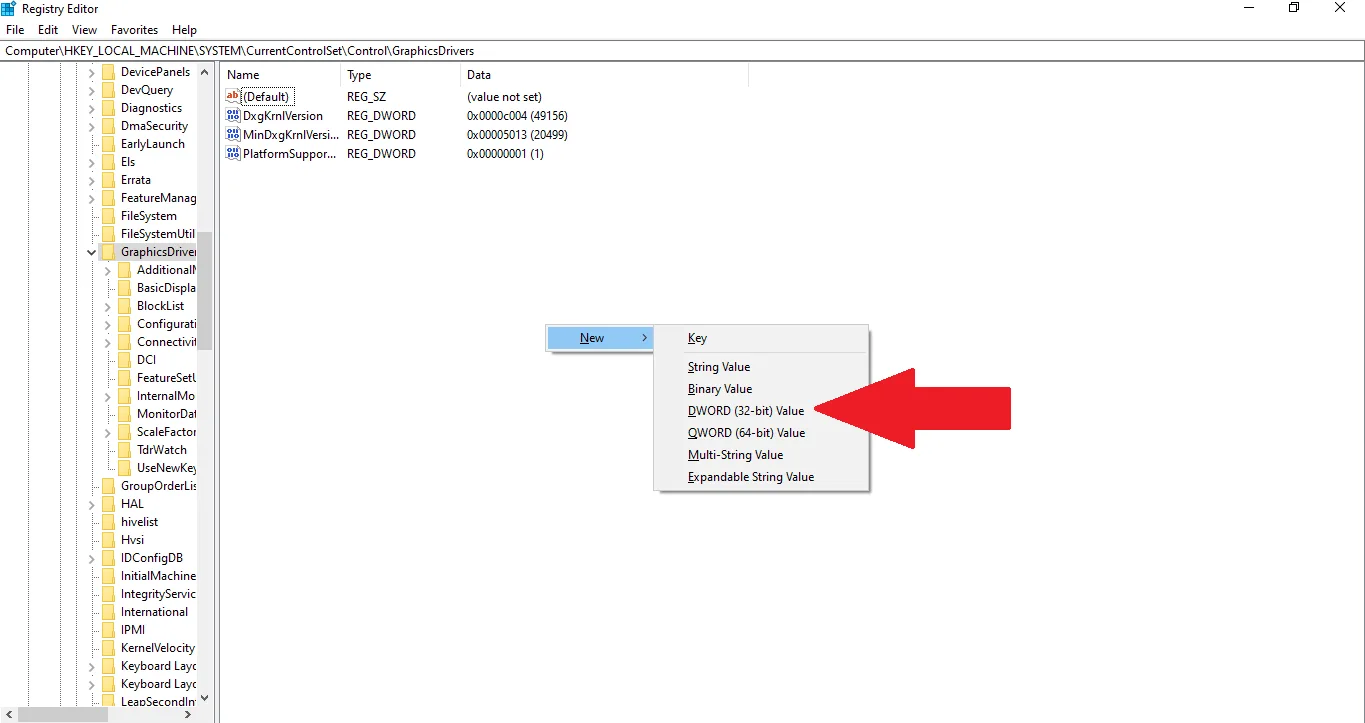
Windows resets the GPU if it doesn’t respond fast enough. You can change this behavior in the registry.
- Press Windows + R →
regedit - Go to: HKEY_LOCAL_MACHINE\SYSTEM\CurrentControlSet\Control\GraphicsDrivers
- Right-click → New > DWORD (32-bit) Value
- Name it: TdrLevel
- Set its value to 0
- Restart PC
This tells Windows not to reset the GPU too quickly and can prevent some DXGI crashes. Try one or a combination of the aforementioned fixes and it should resolve the DXGI crashing. But before you do anything, run the following check list:
- Update GPU drivers
- Verify Game Files
Sometimes the issue is fixed by doing the simplest of things. If not, then try one of the five suggestions I offered.