
If you’re getting fatal errors, hard crashes, or freezing mid-shader compilation, you’re not alone. The sequel to the hilarious High in Life hasn’t released in the best of shapes on PC (Steam, Epic Game Store, Xbox Game Pass). The problem with the game’s current optimization hasn’t spared high end PC gamers as well.
Players with high-end rigs like RTX 4080 + Ryzen 7800X3D are reporting crashes every few minutes, inconsistent FPS drops, and game-breaking bugs in missions like “Kill James Stevenson.”
But there is some good news though, I’m here, and I have the fixes you need to deal with this horrible state of affairs in High on Life 2. Most of the crashing on PC, Fatal Errors, and FPS drops are tied to outdated drivers, certain in-game settings, or config mismatches, nothing to do with what hardware you’re using. However, makes you meet the basic system requirements to run this game.
| Category | Minimum | Recommended |
|---|---|---|
| OS | Windows 10 64-bit | Windows 10/11 64-bit |
| CPU | Intel Core i7-8700K / AMD Ryzen 5 1600X | Intel Core i7-13700KF / AMD Ryzen 7 7800X3D |
| RAM | 8 GB | 32 GB |
| GPU | NVIDIA GTX 1060 6GB / AMD RX 5600 XT 6GB / Intel Arc A380 6GB | NVIDIA RTX 3070+ / AMD RX 6700 XT+ |
| Storage | 115 GB SSD (recommended) | 115 GB NVMe SSD |
| DirectX | Version 12 | Version 12 |
Fix #1: Running High on Life 2 Windows 7 Compatibility Mode
The first fix High on Life Crashing on PC is running the game in Windows 7 Compatibility Mode. It is now confirmed that this game has issues with the current Windows but if you run the game on Windows 7 Compatibility mode, it fixes crashing and fatal errors on for PC users that are running Windows 10 and Windows 11.
To do this, you need to open up Steam and right click on High on Life 2 from your Steam Library. “Click on Manage” and “Browse Local Files”. You will be taken to High on Life 2 game files folder where you must locate High on Life 2’s executable file (.exe / Application).
Right click on the executable file and select “Properties”. Go to the “Compatibility” tab and check the box that says “Run this Program in Windows compatibility mode.” Select Windows 7, apply changes and run the game again from Steam and directly from the .exe file.
Fix #2: Lower Global Illumination Setting
High on Life 2 is not made for Global Illumination and this one setting is confirmed to be causing the Fatal Error crashes on PC. Lowering this setting will most likely fix the issue for you if you’re getting crashes when playing High on Life 2.
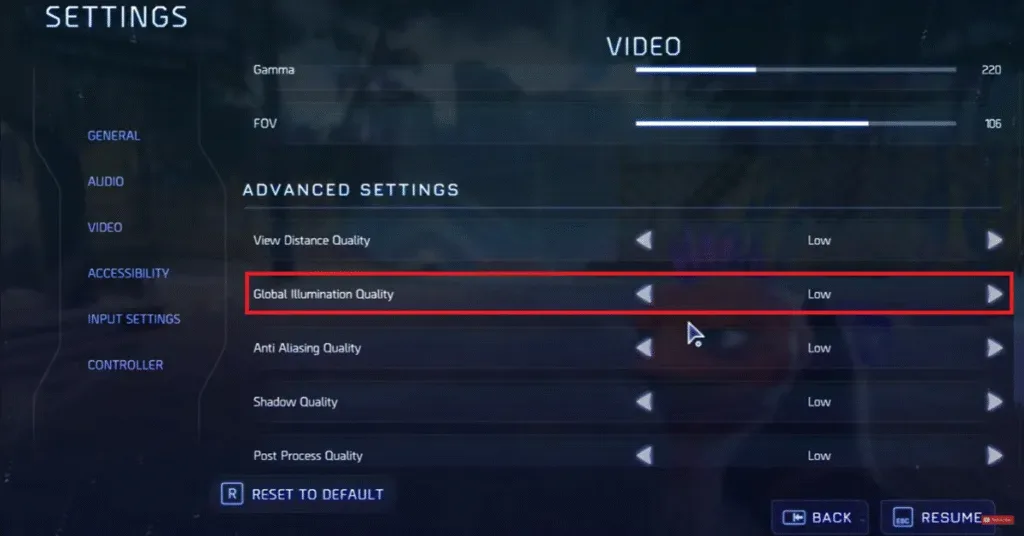
- Boot up the game
- Go to settings menu
- Go to the Video tab.
- Open Advanced Settings
- Set Global Illumination to Low
Fix #3: Update Graphics Drivers and Verify Game Files
Sometimes the issues are not complicated and are solved with basic checklist of fixes. Update your AMD and Nvidia Graphics drivers. Outdated/buggy drivers cause 50%+ of crashing reports.
Next, verify game files through Steam and if you’re on Xbox Game Pass, open the Xbox App and Right-click High on Life 2 > Manage > Files > Repair/Reset.
Fix #4: Clear Shader Cache
High on Life 2, like every other Unreal Game, needs to compile its shaders and sometimes there are issues that come up while this process is taking place. What you can do is clear the Shader cache and increase the size of the Shader Cache via the Nvidia App.
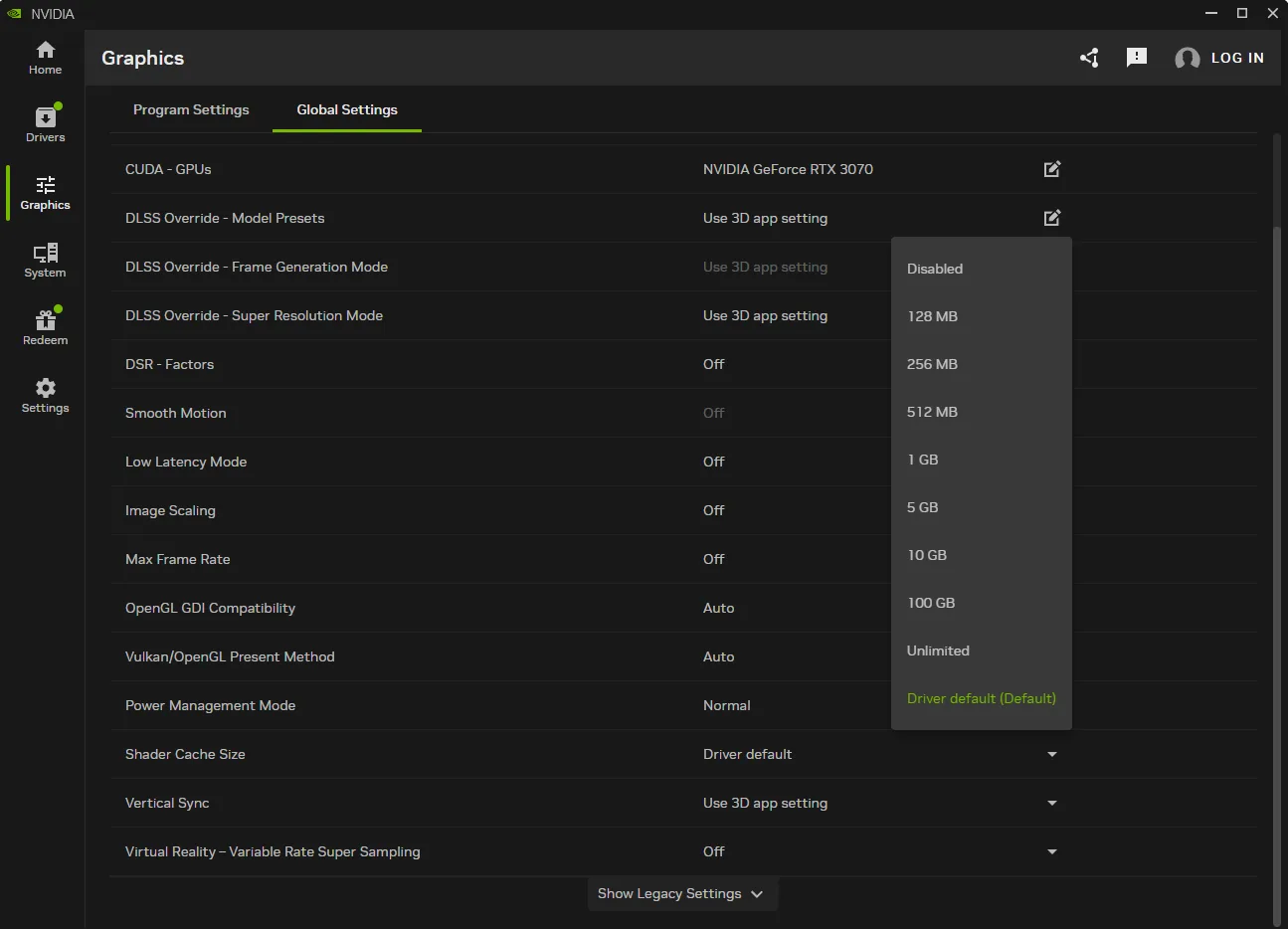
- Open the Nvidia App
- Go to the Graphics tab on the left bar
- Open Global Settings tab
- Find the Shader Cache Size setting
- Select Disable and restart your PC
- Open the Nvidia App and go back to the Shader Cache Size settings again, select 10GB or more for the Shader Cache Size
Run the game again and it should fixe the crashing issue .