
The root cause of “Highguard 30005 – Create File Failed with 32” error is the Easy Anti-Cheat (EAC) issue that prevents the game launching on Windows PCs. Yes, this time your Windows OS is not to blame, shocker!
Error 32 (ERROR_SHARING_VIOLATION) means EAC cannot create or access a required file (typically the driver EasyAntiCheat.sys or EasyAntiCheat_EOS.sys) because another process or security software is holding a lock on it. This commonly occurs after a crashed launch, due to antivirus interference, corrupted EAC files, or system conflicts.
Known Fix for Highguard 30005 – Create File Failed with 32 Error
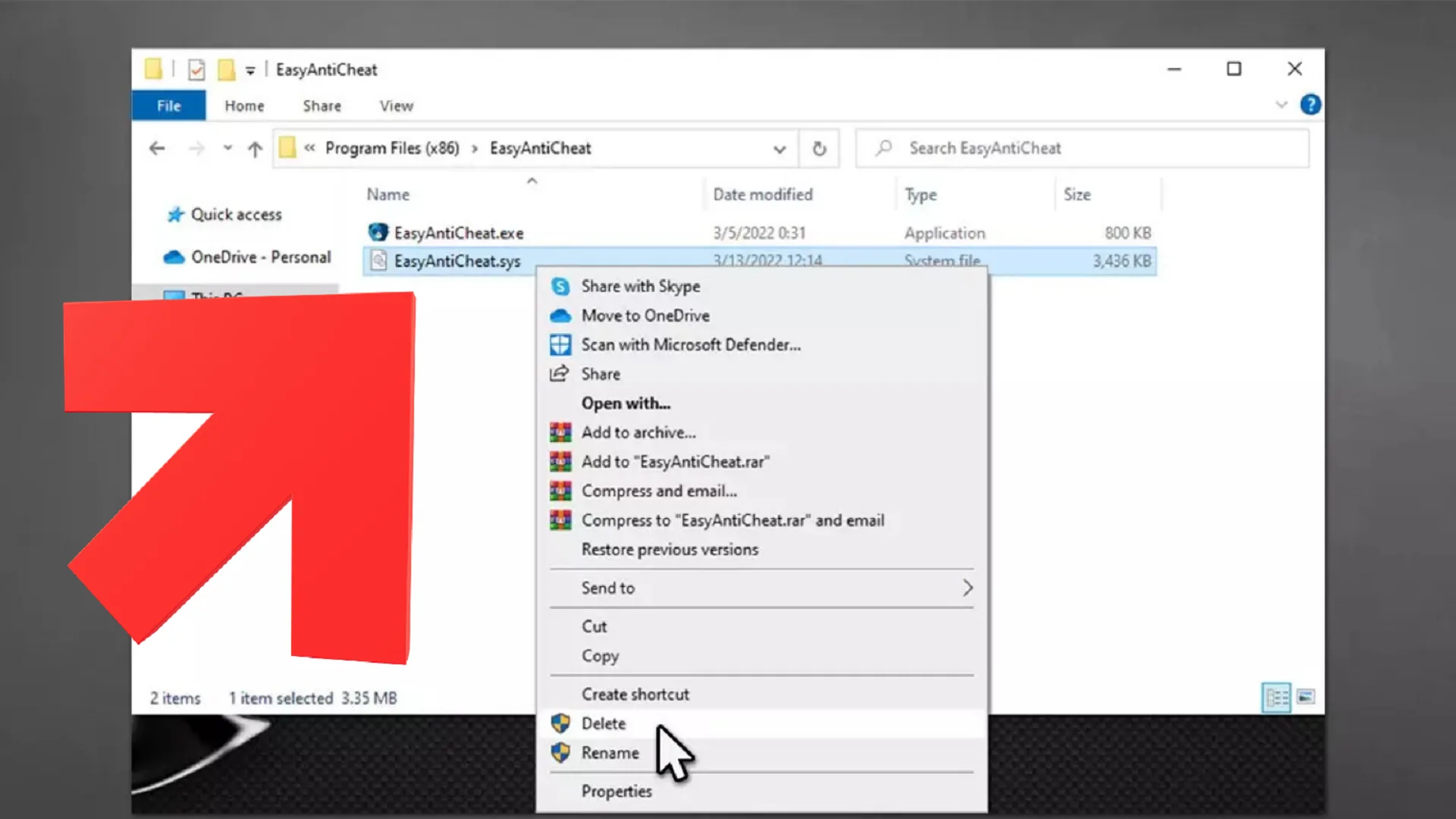
The best fix for Highguard 30005 – Create File Failed with 32 Error is to delete the locked EAC driver file. This allows EAC to recreate it cleanly on launch. Open your task manager and close to Highguard or any tasks related to Steam, Epic, etc. Follow these steps:
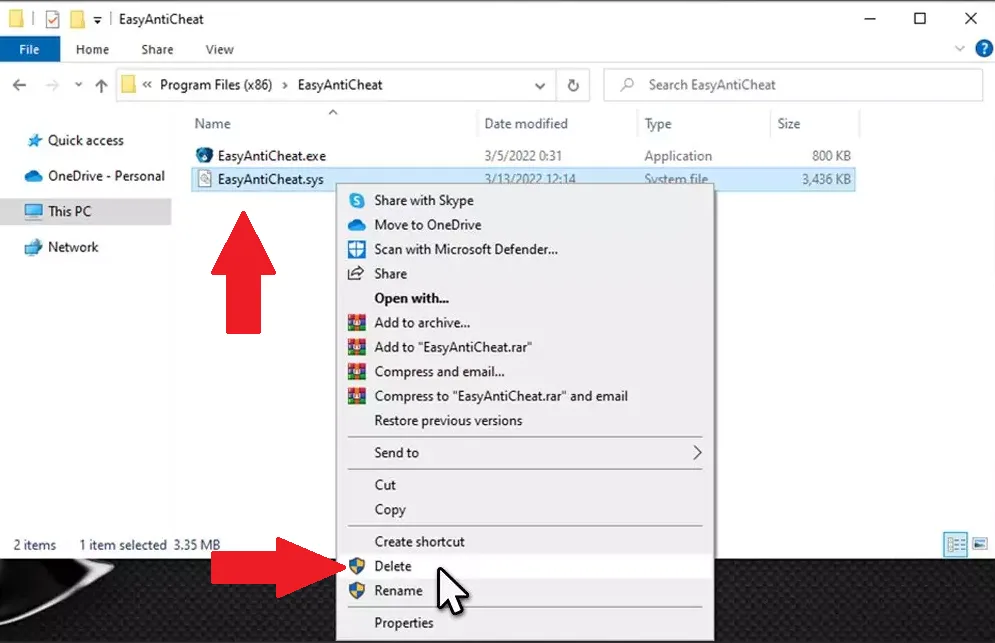
- Open File Explorer and go to C:\Program Files (x86)\EasyAntiCheat (or check C:\Program Files (x86)\EasyAntiCheat_EOS if the folder exists there—Highguard/EAC may use one or both).
- Locate EasyAntiCheat.sys (or EasyAntiCheat_EOS.sys).
- Right-click it → Delete.
If the deletion if blocked (file is us) open task manager and look for any tasks related to Easy Anti Cheat; shut down all related processes completely. If the files are still locked, restart your PC and it will close everything.
Launch Highguard after deleting EAC driver file and the game will recreate these files automatically and install related services. This should fix the problem but I recommend restarting the PC once before launching Highguard and doing some additional remedies for Highguard 3005.
Add Antivirus/Firewall Exceptions
Antivirus (including Windows Defender) often blocks or locks EAC files/services. Temporarily disable your antivirus/Windows Defender real-time protection and test launch. It the game works fine, add a permanent exception for Highguard’s game folder.
- C:\Program Files (x86)\EasyAntiCheat (and _EOS if present).
- EAC executables/services (e.g., EasyAntiCheat.exe, EasyAntiCheat.sys).
Go to Windows Security → Virus & threat protection → Manage settings → Exclusions → Add exclusions. Make sure to check Windows Firewall for allowances.
Disable Kernel-Mode Hardware-Enforced Stack Protection (HVCI/Memory Integrity)
This Windows security feature is known to sometimes create conflicts with EAC drivers. Go to Windows Security > Device security > Core isolation details. Here, you need to turn off “Kernel-mode Hardware-enforced Stack Protection” (or Memory Integrity).
These steps will fix Highguard 30005 for most players. If you have any questions or want more help, leave a comment below.