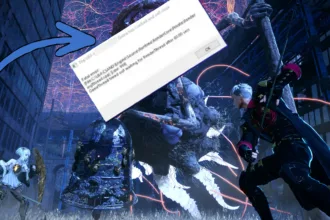

Highguard, the PvP raid shooter from the creators of Apex Legends and Titanfall, launched in early 2026 on Steam and quickly players noticed there are some performance issues and bugs with the game. One of the primary issues with Highguard is the launch issue with error code 0x60670402 on Windows PC.
The error code is accompanying the message “One or more files in your installation are corrupted or missing. Please reinstall the game.”
This error typically stops the game at launch during the Easy Anti-Cheat (EAC) but sometimes Highguard is known to crash into 0x60670402 after launch too in Windows 10 and Windows 11.
The silver lining with this error is that unlike the more notorious 0xE0670402 (Secure Boot/Machine Integrity failure requiring BIOS tweaks), 0x60670402 has nothing to do with hardware security problems. The error code is tied to local file corruption which makes Highguard’s 0x60670402 fixable.
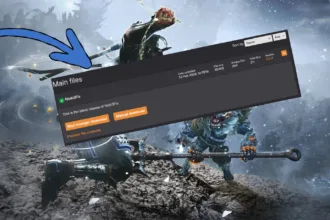
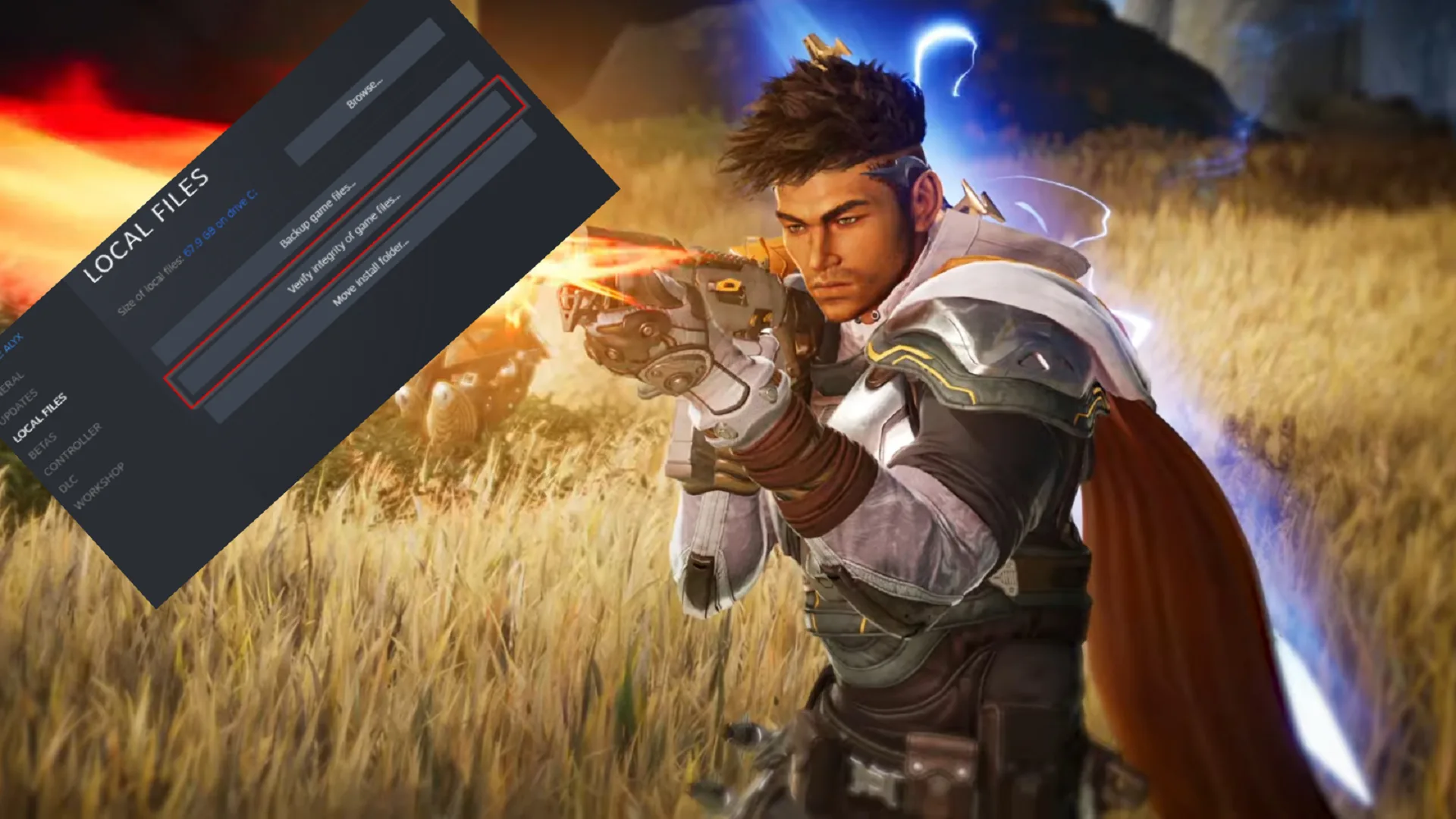
Try this first: There is a 80-95% resolution with basic Steam verification, escalating to system repairs for stubborn cases. Launch Steam → Library → Right-click Highguard → Properties → Installed Files.
If game file integrity isn’t fixing the issue for you, then proceed with the following troubleshooters.
Clear Download Cache & Restart Steam
One of the fixes you can try with Highguard ERROR: 0x60670402 is deleting the corrupt cache that causes bad re-downloads. This means even if you check file integrity and some files are re-downloaded, they might still be bad.
- Steam → Steam (top-left) → Settings → Downloads → Clear Download Cache → Restart
- Steam. Log in → Verify files again.
Clearing download cache flushes temporary data that is common with new games like Highguard.
Full Game Reinstall (Reliable Nuclear Option)
Well, this is a nuclear option indeed. If nothing works you can re-download the entire game. However, first you must clear any residual data. Go to Steam and right click on Highguard, from there Uninstall Highguard.
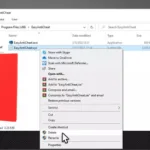
Then go to C:\Program Files (x86)\Steam\steamapps\common\Highguard and see if any data related to the game or any folder exists. Delete everything Highguard on your drives. Restart the PC and then re-download Highguard.
However, before launching the game I high recommend repairing Windows System Integrity. It Targets underlying OS corruption, especially sysmain.dll or registry.
- Search cmd → Run as Admin.
- sfc /scannow (repairs system files) → Restart if prompted.
- DISM /Online /Cleanup-Image /RestoreHealth (fetches clean files from Microsoft) → Restart.
Now run performance counter registry fix:
- Admin CMD: lodctr /R.
- If error: net stop winmgmt → lodctr /R → net start winmgmt.
SysMain Service Check (Superfetch):
- Win+R → services.msc → Find SysMain → Right-click Properties → Startup: Automatic → Start if stopped.
- Verify Path: Search Environment Variables → Edit Path (System) → Ensure %SystemRoot%\system32 is top-listed.
Additional/Preventive Measures
Better safe then sorry, right? Lets use some preventive measures before launching Highguard to make sure 0xE0670402 issue is resolved.
| Quick Check | Action |
|---|---|
| Antivirus | Add exclusions: Highguard folder + C:\Program Files (x86)\EasyAntiCheat → Disable real-time scan temporarily. |
| Drivers/OS | Update Windows → GPU drivers (GeForce Experience/AMD Software). |
| Disk Health | Admin CMD: chkdsk C: /f /r (schedule restart). |
| Run as Admin | Right-click Highguard.exe/Steam.exe. |
| Overlays | Disable Discord/NVIDIA/Steam Overlay in game Properties. |
With these steps you should be able to fix Highguard error 0x60670402. In most cases verifying works fine and in other cases a reinstall does the trick. Hopefully, you won’t need to do anything else. However, leave a comment below if you need more help fixing 0x60670402 in Highguard and I will reach out to help.