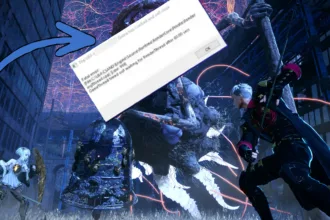

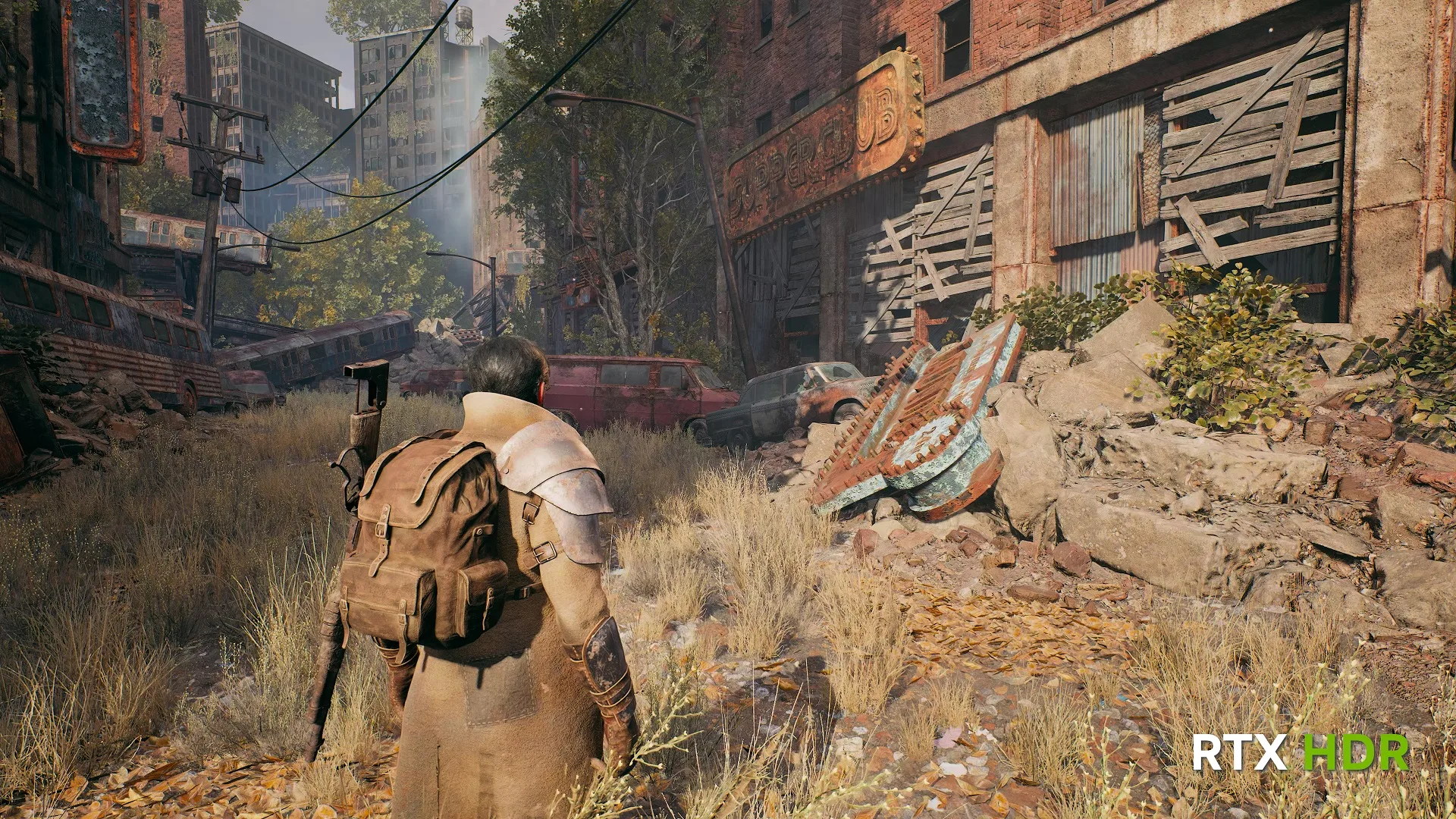
RTX when mixed with HDR is not the most stable experience in gaming and often times one thing or the other cracks. A common issue players face is an error message “There was a problem applying the setting” when trying to use RTX HDR on Nvidia hardware.
This issue has become fairly common since RTX HDR rolled out more widely, especially on Microslop’s Windows 11 systems or multi-monitor setups. The good news is that the problem is almost always caused by a configuration conflict rather than faulty hardware.
Thankfully, there are a handful of fixes and wordarounds you can try to permanently deal fix “There was a problem applying the setting” error error message.
Common casue: RTX HDR depends on a very specific set of conditions to work correctly. If any of these aren’t met, the NVIDIA App fails silently and throws the generic “problem applying the setting” message. The issue is most commonly caused by incompatible display mode, Windows HDR conflficts, unsupported color depth, outdated drivers or overlay interfering with the pipeline.
Fix #1: Turn off Windows HDR
The very first thing you need to check if Windows HDR is turned off. If Windows HDR is turned on then Windows HDR is most likely the culprit here. It is widely reported they RTX HDR faces a bunch of issues when Windows HDR is turned off.
Open Windows Settings, go to System, then Display, select your primary monitor, and make sure Use HDR is turned off. After disabling it, restart the NVIDIA App and try enabling RTX HDR again.
Fix #2: Check That You’re Using Fullscreen or Borderless Fullscreen
While RTX HDR works with DX11 as well as DX12 there are some things to keep in mind. RTX HDR only works in DX11 and DX12 games that run on Fullscreen or Borderless Fullscreen mode. If you are using Windowed Mode the settings will not apply.
Launch the game you’re testing and go to its display settings to make sure it is running on Full Sceen or Borderless Fullscreeen mode.
Fix #3: Verify Your Monitor Color Settings
RTX HDR requires the display to be running in a supported color format. Open the NVIDIA Control Panel, go to Change Resolution, select your main display, and confirm the following:
Your output color format should be RGB, output dynamic range should be set to Full, and color depth should be 8-bit or 10-bit. Some monitors default to 12-bit or YCbCr modes, which can cause RTX HDR to fail.
Apply these settings then enable RTX HDR again to see this fixes the problem with “There was a problem applying these settings” error message.
Fix #4: Disable DSR and Image Scaling
RTX HDR will not work if you have DSR or Nvidia’s Image Scaling settings turned on. This will directly lead to “There was a problem applying these settings” error with RTX HDR in Nvidia app. Disable DSR or Image Scaling inside the Nvidia GeForce app.
- Open the Nvidia APP > Graphics tab > Global Settings.
- Turn off DSR and Image Scaling.
- Apply the changes.
- Turn on RTX HDR and the “There Was a Problem Applying the Setting” is fixed.

Fix #5: Disable Conflicting Overlays and Filters
Many third party overlays don’t work well with RTX HDR. These overlays can interfere with RTX HDR inection, tools like ReShade, MSI Afterburner, Discord, and Steam’s FPS counter are the main culprits here. I highly recommend turning them off if you have them off and trying to use RTX HDR.
Temporarily disable all overlays, relaunch the game, and try again. If RTX HDR works afterward, re-enable overlays one at a time to identify the conflict.
Fix #6: Update (or Reinstall) NVIDIA Drivers
HDR works best when the latest Nvidia drivers are installed, especially if you’re playing a new game. Update yourr Nvidia drivers or reinstall the latest update to possibly fix the RTX HDR “There was a problem applying these settings.”
Open the NVIDIA App or GeForce Experience and make sure you’re running the latest Game Ready Driver. If the issue started after an update, perform a clean installation by selecting “Custom Install” and checking “Perform a clean installation.”
Doing this will reset the HDR profiles and fixes most HDR related issues with Nvidia hardware.
What Happens if Nonne of These FIxes Work
Well, if nothing I shared above resolves the error then it is mostly liklet a compatibility isse with that specific game or engine. RTX HDR does not support every title yet, even if it is technically running on DX11 and DX12.
Test a seperate game with RTX HDR is the fastest way to spot compatibility issues.
The “There was a problem applying the setting” error looks vague, but it almost always comes down to Windows HDR conflicts, display settings, or overlays so hopefully, one of the aforementioned fixes help.