
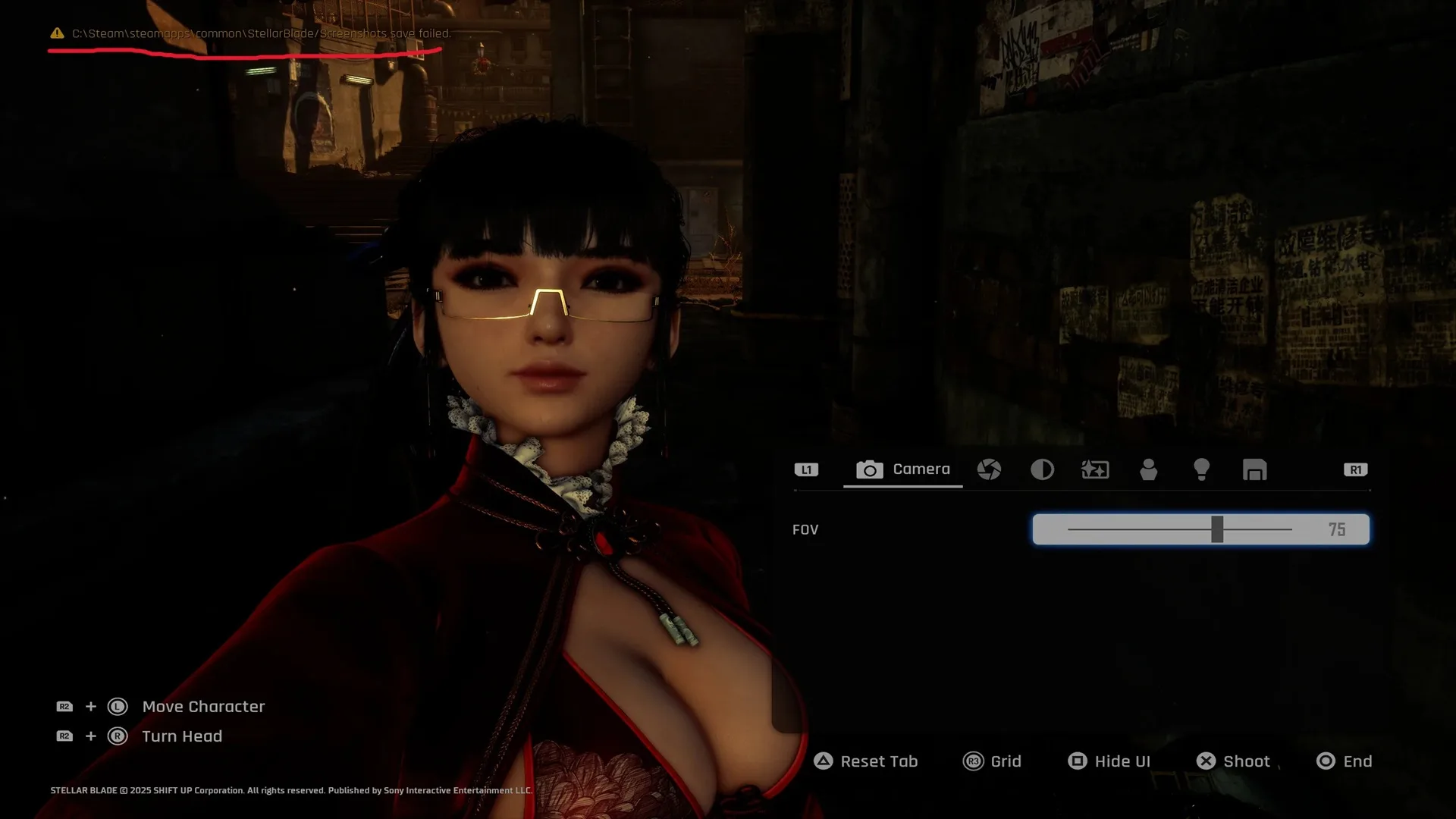
Steller Blade launched in a pretty good shape on PC but as we know some annoying issues can always come through. Many PC players of Stellar Blade are experiencing an issue where taking a screenshot in the game’s photomode results in a “Screenshots Save Failed” error.
Steller Balde looks stunning in photomode which capturing gameplay moments that much more fun but if your screenshots aren’t saving that is a major issue. It looks like the most common reason behind this error on PC is that Steller Blade doesn’t get the correct folder permission to write screenshot files.
Create the “Screenshots” Folder Manually
While you can try multiple fixes and I will list them all for you, I think the best fix for Steller Blade screenshot not saving is creating the screenshots folder manually. Easily the most reliable way to fix this in my opinion. To do this, you must create a screenshots folder in Steller Blade game files.
- Open your Steam library and find Stellar Blade.
- Right‑click on it, choose Manage, then click Browse local files.
- In the folder that opens, right‑click on a blank area and choose New > Folder.
- Name the folder exactly: Screenshots.
- Relaunch the game and try using photomode again.
Typically, its observed that screenshot not saved error in Steller Blade happens when the game can’t create a screenshots folder or it doesn’t exist. Creating this folder manually gives the game exactly where it needs to put image files.
Suggestion: Keep all drivers updated and turn off any third-party overlays.
Make Sure the Game Has Write Permissions
If by any chance you still face “screenshot save failed” error in Steller Blade after manually creating a folder, the next best method of fixing this error is by making sure the game has write permissions. Even if the “Screenshots” folder exists, Windows might block the game from writing to it due to permissions.
If that is the case you can test it by closing the game fully. Even from the task manager so no Steller Blade related processes are active. Go to the Stellar Blade installation folder (use Steam’s “Browse local files” to get there). There should be Steller Blade (.exe) file in the directory, run it as administrator.
Running as admin gives the game elevated permissions so it can create or write files without Windows blocking it.