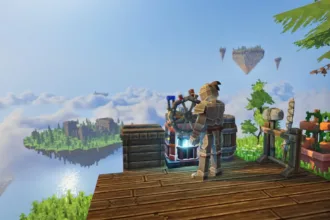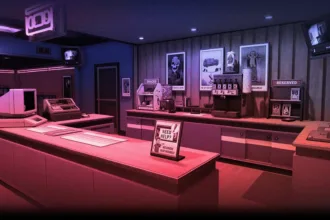

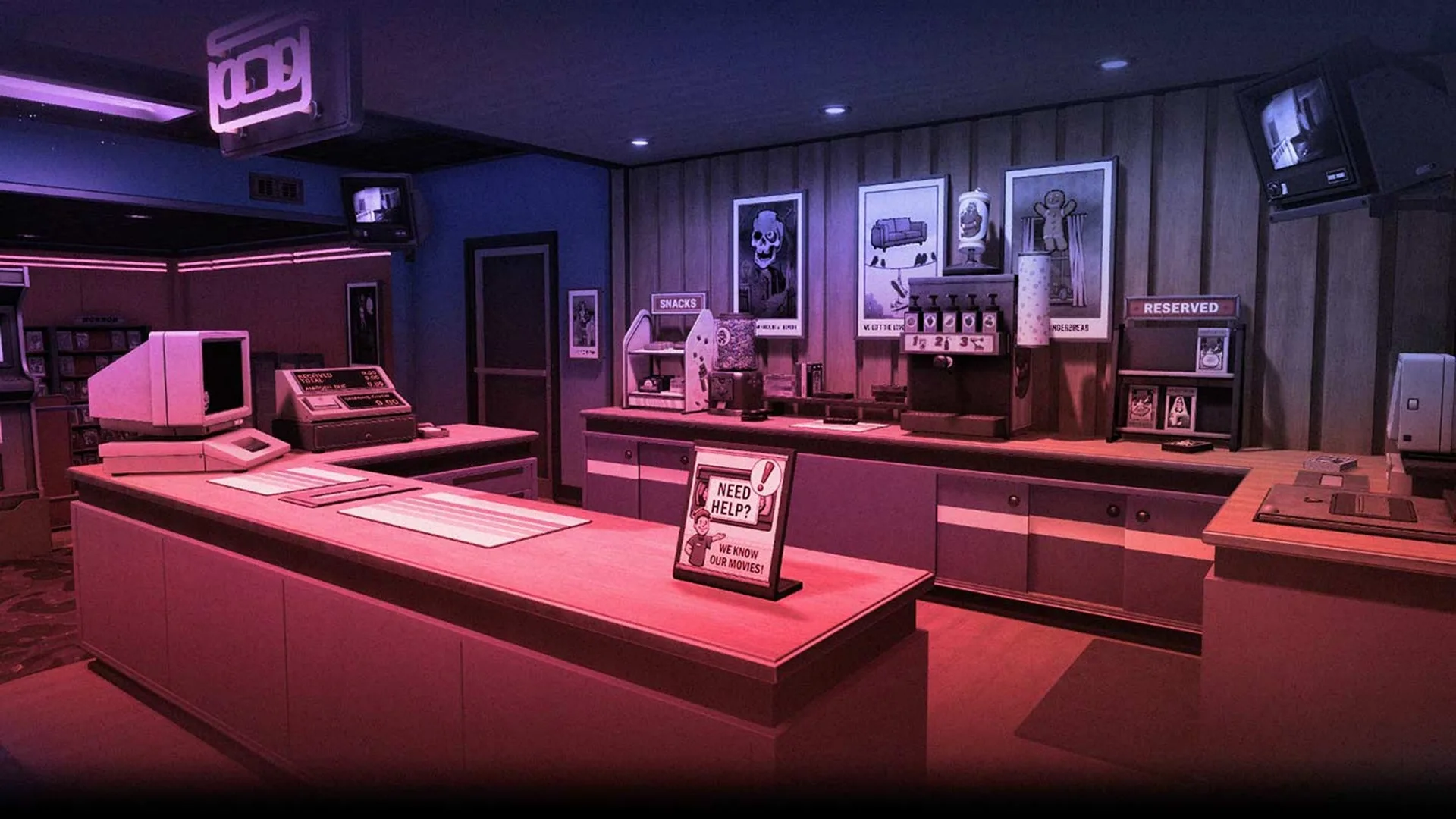
One really unique feature in Retro Rewind is that it gives you the option to play custom videos on the TV that is inside the store. By default, there are three channels you can switch between to keep your customers entertained. However, if you want to mix things up the game lets you add custom videos and then play them in the store TV.
The only requirement is that the footage you use is properly formatted and the right resolution. You can play any video you want as custom footage in Retro Rewind; sky is the limit. In between dealing with broken tapes, and managing employees, you deserve some custom entertainment for yourself.
How to Setup Custom Videos in Retro Rewind
Download the video you want to add to the TV in your Retro Rewind Store. To use it as custom footage, the file has to be in MP4 file format with a 512×512 resolution. The format is the easy part the resolution is the issue. The best way to handle this is a software called Handbreak.
Handbreak is video conversion software free to download from the internet.
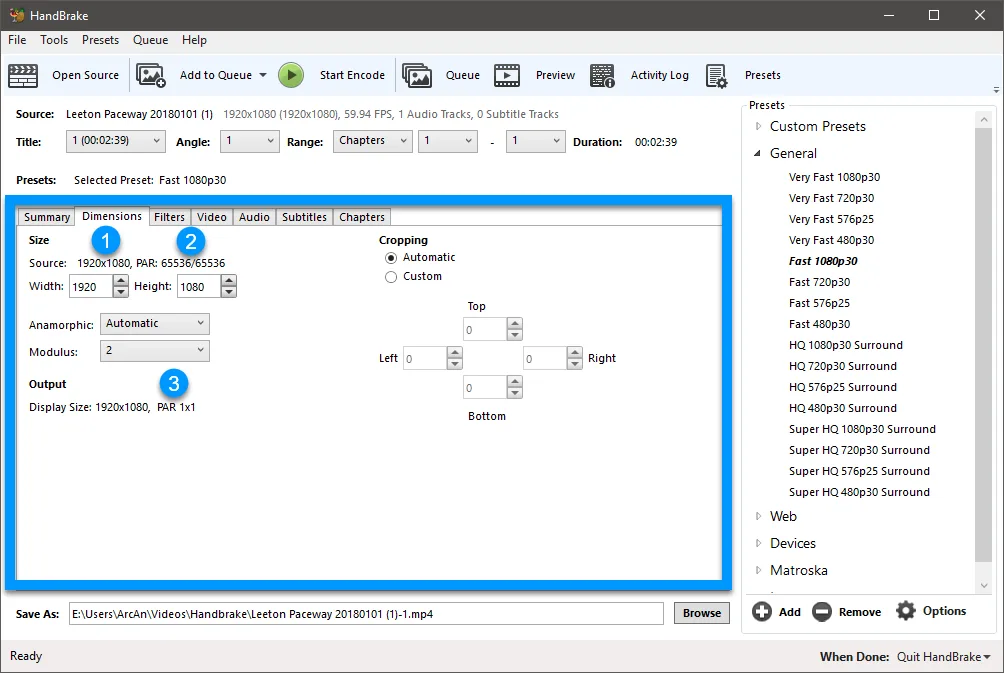
- Download and install HandBrake.
- Drag your source video (MP4, MOV, even GIF) into the main window.
- Go to the Dimensions tab.
- Under “Cropping,” change Resolution Limit to Custom.
- Set both Width and Height to 512.
- Switch to the Video tab → Set Video Encoder to H.264 (x264).
- Go to the Audio tab → Ensure Codec is set to AAC (avcodec).
Hit the “Start Encode” button after picking a save location to correctly format the video for Retro Rewind.
Once the video is ready the next step is placing it inside the correct folder in Retro Rewind installation files. In your Steam library, right-click Retro Rewind → Manage → Browse Local Files. Find the path RetroRewind → Content → Movies → VHS.
The VHS folder has three subfolders; Public, Police, Sci Fi. Each one of these folders contains one file:
- RR_Channel_Public.mp4
- RR_Channel_Police.mp4
- RR_Channel_Scifi.mp4
We will be switching out one of these MP4 files for our custom footage. However, I HIGHLY recommend backing up the original file before replacing it with your custom footage.
Common Troubleshooting
| Problem | Likely Cause | Fix |
|---|---|---|
| Black screen | Wrong resolution or codec | Re-encode to 512×512 + H.264/AAC |
| No audio | Audio not AAC | Check Audio tab in HandBrake |
| Video too quiet | Low source volume | Use FFmpeg volume filter |
| Game ignores file | Filename typo or wrong folder | Double-check exact name/spelling |
| Static or glitchy | File too large or corrupt | Re-encode with lower CRF or shorter clip |
| Update broke customs | Original files restored | Re-apply your backups |
If there is still some issue, try a different video. Some videos come with weird metadeta that the game engine doesn’t like.